
Step 1: Create Job & Property Details
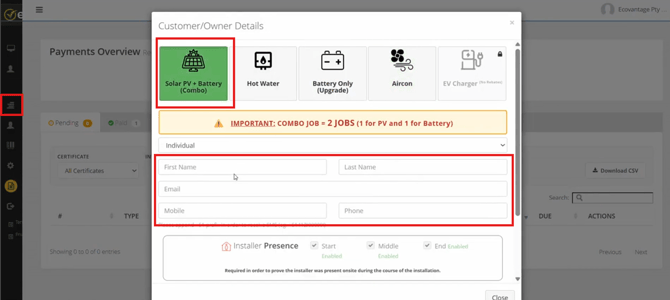
- From the left sidebar, click Jobs and select Create.
- Select the relevant technology type (such as STC PV Solar and Battery).
- Enter the customer or job name and click Create.
- Select the Property Type as either Residential or Commercial.
- Scroll down and click Save and Next.
Step 2: Configure System Details (Panels & Inverter)
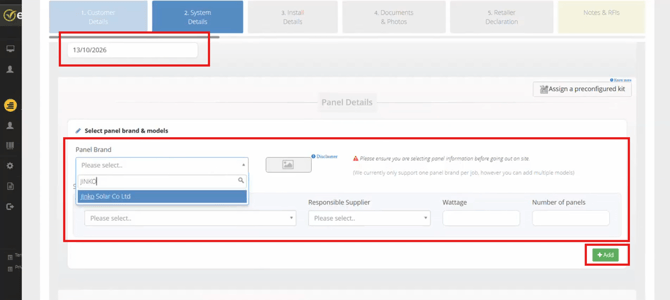
- Enter the planned Installation Date.
- Click Add Panels and select the approved solar module model and total quantity.
- Click Add Inverter to input and attach the inverter specifications.
- Add the number of years for the System Warranty.
- Confirm equipment details and click Save and Next.
If you're adding a battery to this job, follow the accompanying Adding a Battery & BSTC Compliance in Bridge Select guide.
Step 3: Enter Distributor & Assign Installers
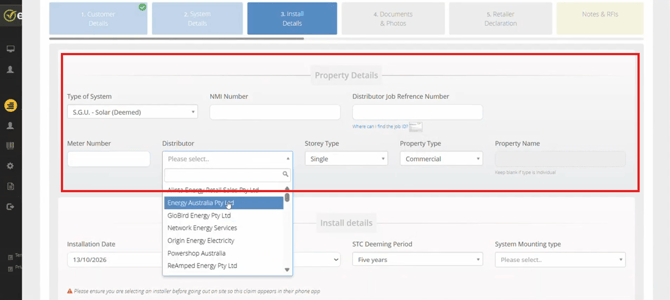
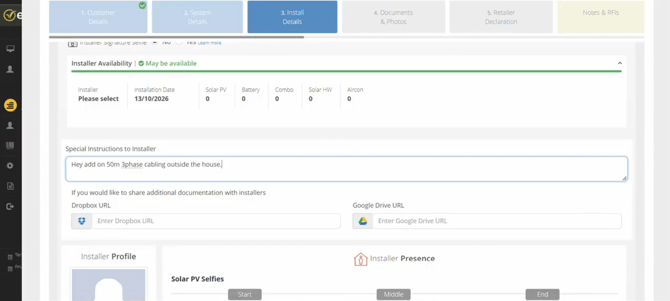
- Enter the Distributor Job Number and select the corresponding Distributor Type.
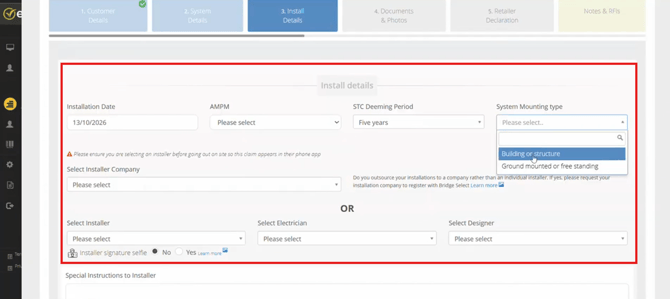
- Confirm the installation date, which will auto-populate from your previous entry.
- Select the System Mounting Type (e.g. building or structure).
- Assign the job: select an Installer Company if working with a subcontracting firm, or allocate it directly to the individual Installer.
- Enter any Special Instructions required for the installation crew.
- Click Save and Next.
Step 4: Complete Job Questions & Review Mandatory Evidence
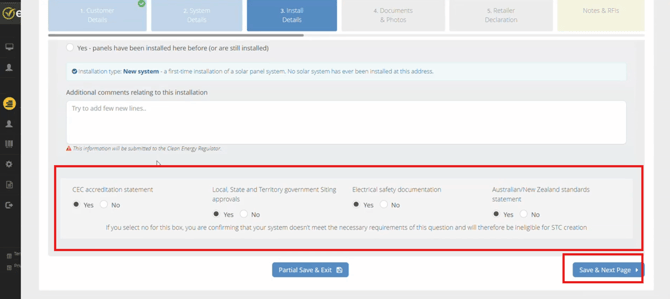
- Complete the installation questionnaire and add any additional comments relevant to the job.
- Ensure the standard compliance confirmations at the end of the section are set to Yes, then click Save and Next.
- Review the Mandatory Documentation section to confirm requirements such as the CCEW (Certificate of Compliance for Electrical Work).
- Review the list of Mandatory Photos that the on-site technicians will capture via the Bridge Select app.
Step 5: Sign Retailer Declaration & Submit
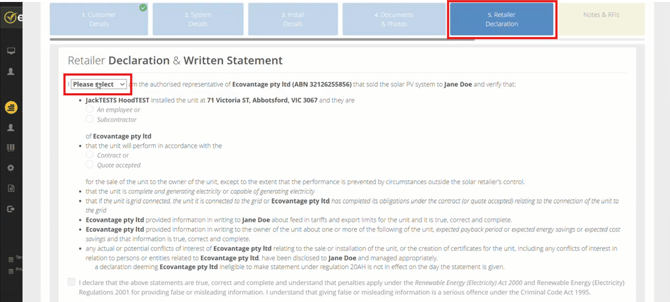
- Navigate to the Retailer Declaration section.
- Ensure the authorised person reviews the installation summary and provides their digital sign-off.
- Perform a final review of all entered details and click Save.
Note: Once the job is assigned, it will sync automatically with the installer's mobile app so they can upload on-site evidence and complete mandatory photos directly from the field.