
Step 1: Access Team Settings
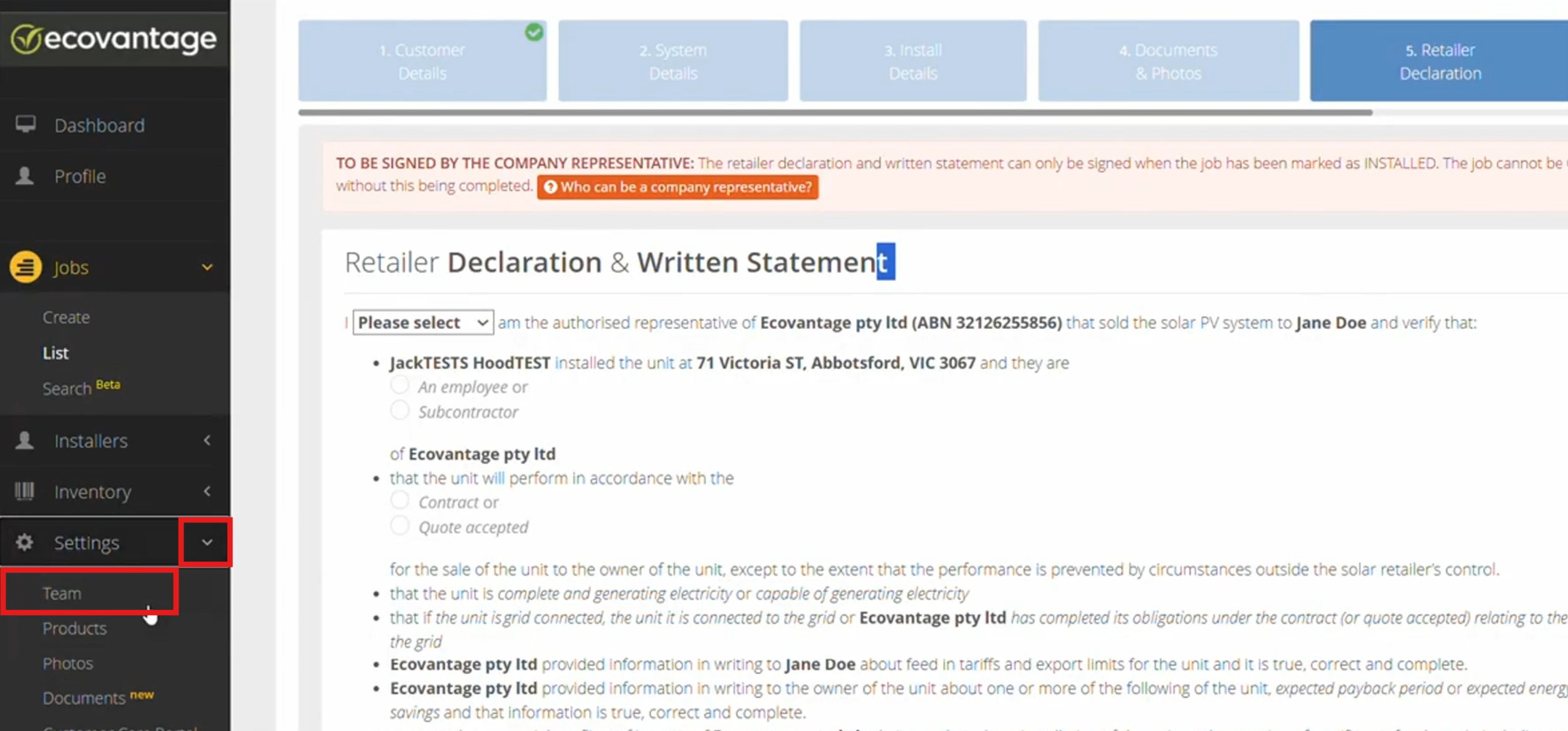
- On the dark navigation menu on the left-hand side, click Settings.
- From the sub-menu, select Teams.
Step 2: Add an Authorised Representative
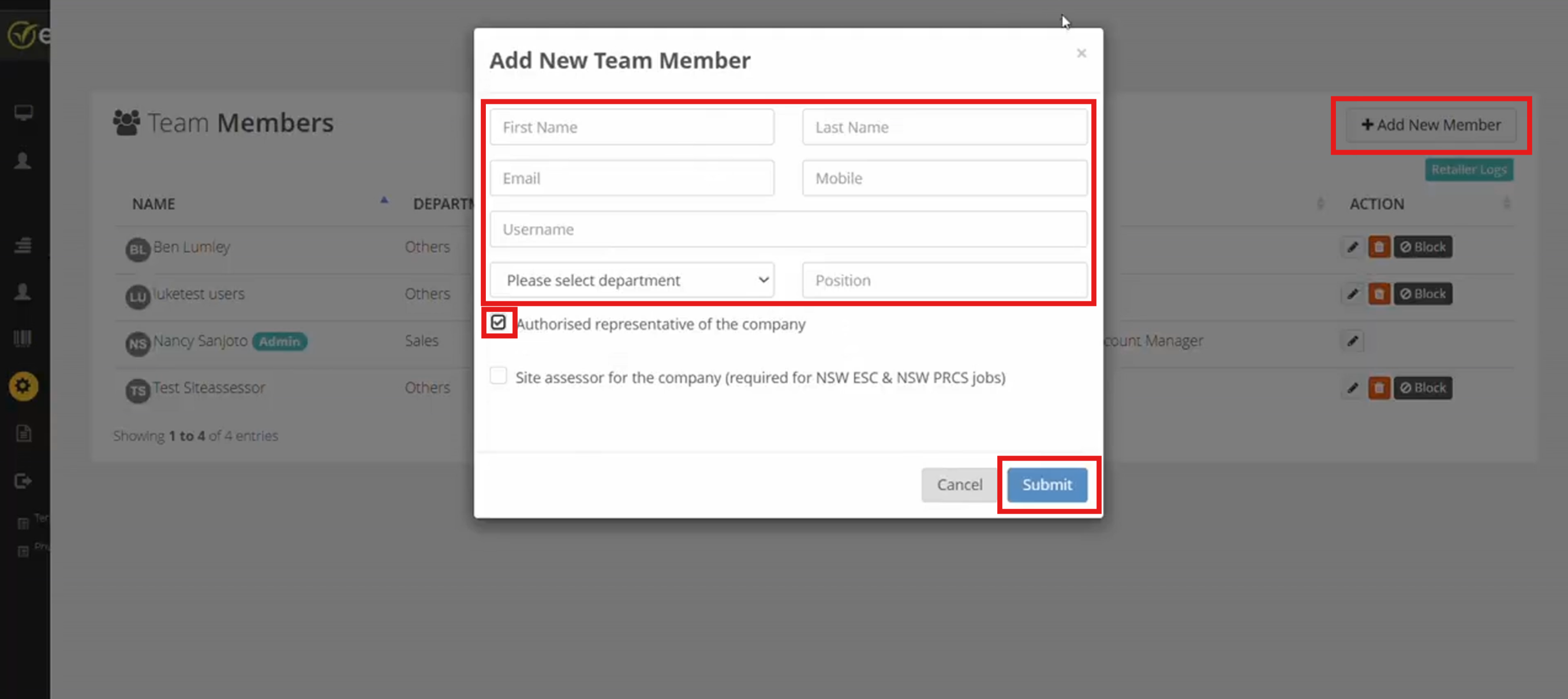
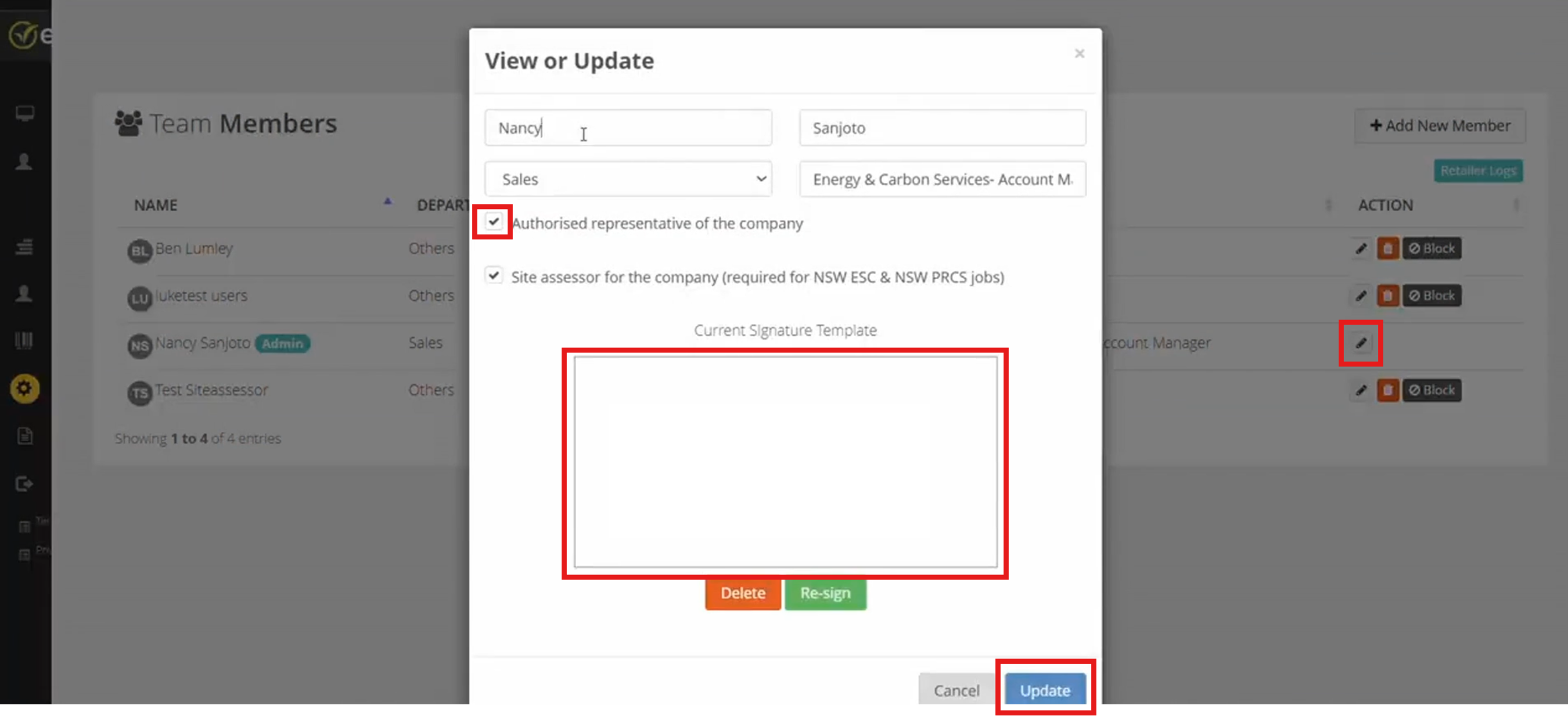
To ensure a team member appears in the dropdown list under the Retailer Declaration for solar and battery jobs, they must be configured as an authorised representative:
- Click the Add a New Member button.
- Enter the user's details, including their name, department, and job description, then click Submit.
- Ensure the role or permission is marked as an Authorised Representative permitted to sign on behalf of the company.
- Set up or link the user's signature template.
- Click Update (or Save) to create and store the profile.
Step 3: Check Installer Connection Status
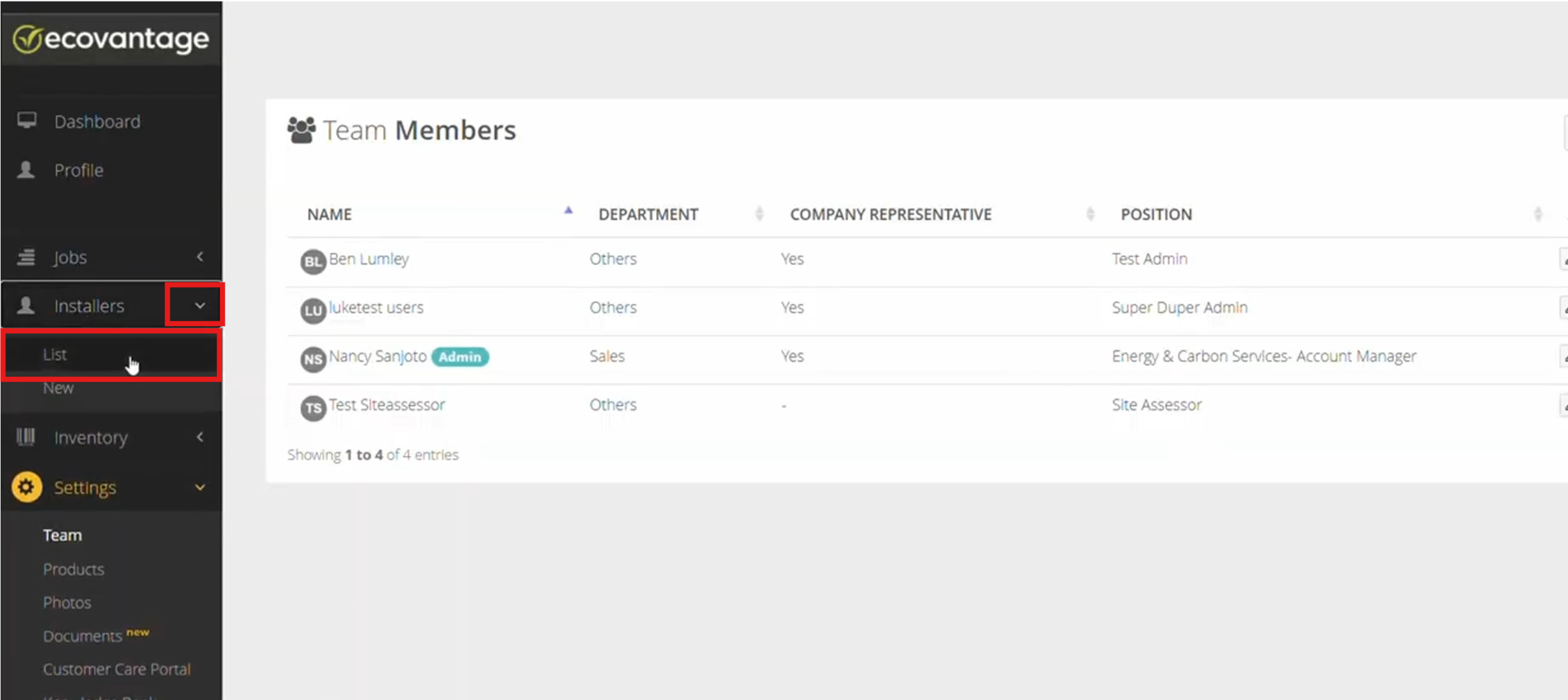
- Navigate to the left-hand menu and select Installers (or Installer's List).
- Review the list of technicians to verify their integration with your portal:
- Connected: The installer has accepted the connection request via their mobile app and is ready to be assigned to jobs.
- Pending Approval: The connection request has been sent but has not yet been accepted by the installer on their mobile device.
Note: Only users properly configured as authorised company representatives within the Teams settings will be selectable when signing off on retailer declarations during job submission.